Your AI, over MCP
Fancy Framework exposes itself to your own AI assistant — Claude, or any other MCP client — through MCP, using WordPress's own Abilities API. There is no API key anywhere in the plugin: the AI is yours, connected to your WordPress install the same way an MCP client connects to any other server.
This needs the mcp-adapter
plugin active, and WordPress 6.9 or newer for the abilities themselves.
What your AI can always do
Four abilities, always available, read-only:
- Get tokens — every variable, its current value, and (for a role) the full list it can choose from.
- Get recipe — the current settings in the panel's own terms, plus a plain-English explanation of what each one shapes.
- Get accessibility report — the same seal you see in the panel, computed on demand.
Ask your AI something like "what does my site's Fancy Framework setup look like, and does it pass accessibility?" — no setting to turn on, nothing to configure.
Proposing a change
A fourth ability, propose a change, lets your AI suggest edits — a new color, a different scale, a personality — as a set of recipe changes with a short note explaining them. By default this does not touch your site: the proposal appears in the panel, under Review, exactly like a change you made yourself, with the same preview and the same undo. You decide whether to apply it.
Anything outside the plugin's own contract — your actual recipe variables — is refused outright; your AI cannot touch unrelated options, content, or anything else through this ability.
Let your AI apply changes
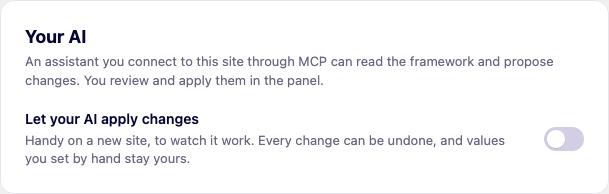
Settings → Your AI has one switch, off by default: when it is on, a proposal is applied straight away instead of waiting for review, through the exact same apply pipeline as a change you make in the panel — same undo, same history, same "never overwrites what you changed by hand in the builder". If you have the panel or the front end of your site open while this happens, it updates live, without a reload.
Turn it on when you want to watch your AI work directly on a new site; leave it off on a site that is already live and tended by hand. Either way, every change it makes is one undo away, and shows up in History like any other.