Installation
-
Upload the plugin and activate it, the same as any other WordPress plugin.
-
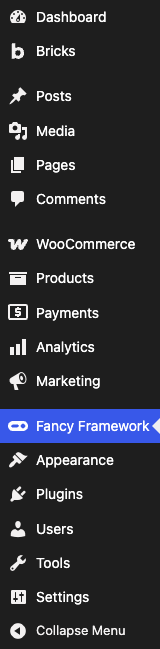
A new Fancy Framework item appears in the wp-admin menu. Open it — this is the plugin's own screen, and it is always available regardless of where else you use the panel.
-
If the plugin cannot find Bricks or Etch active, that screen tells you so and offers to activate whichever one you have installed, or links to get one. Nothing else works until one of them is active.
-
Once a builder is active, the screen offers three ways to start: open the panel with its own balanced defaults, start from variables Bricks or Etch already has (if you pasted something in by hand before), or — on Bricks only — import a JSON you generated at fancyframework.com. See Getting started.
Where the panel shows up afterwards
-
The front end, as a button in the WordPress admin bar, on any page — administrators only, by default.

-
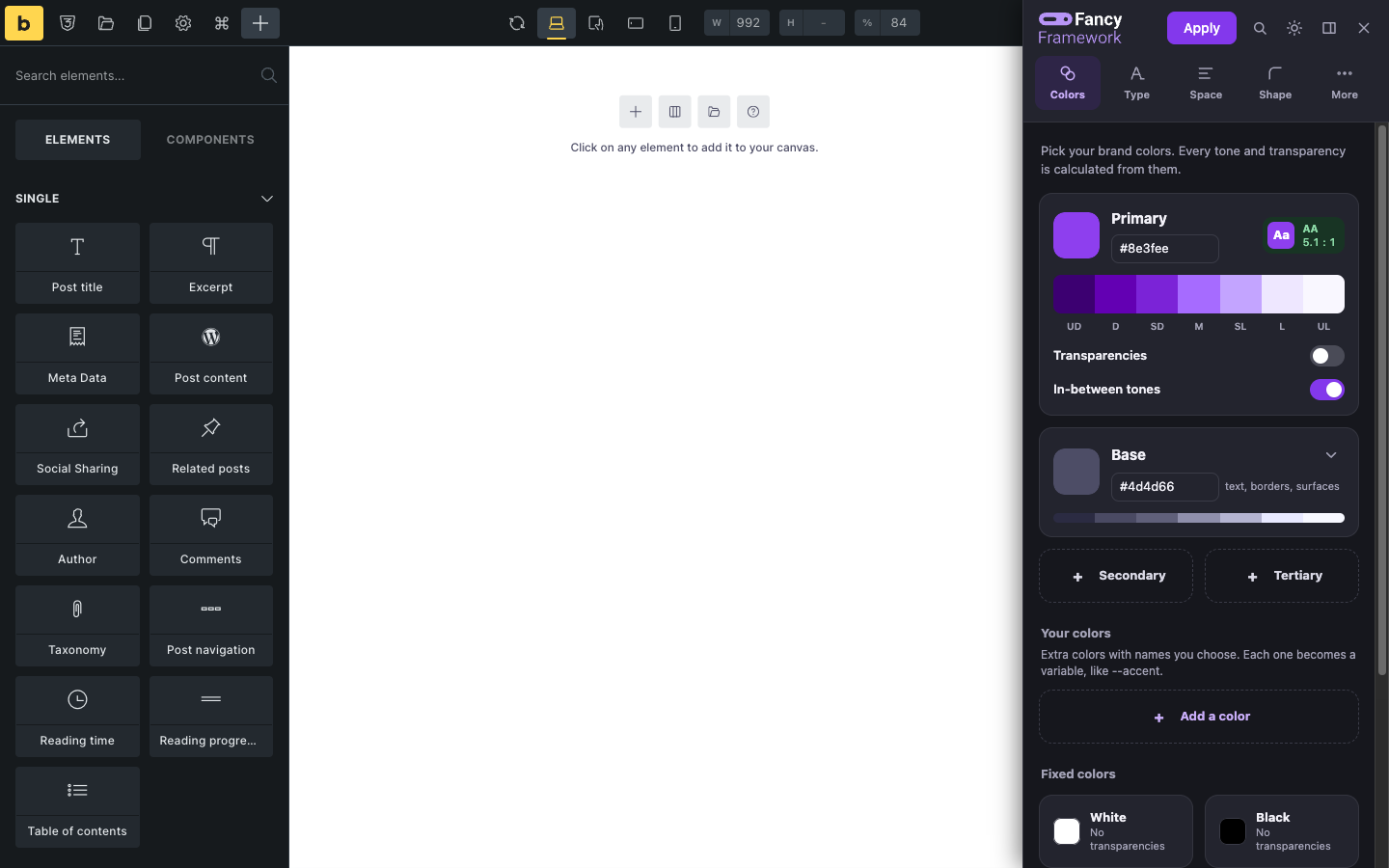
Inside the Bricks builder, as a button in its own toolbar.

-
wp-admin, on the plugin's own screen, always — shown above.
Each of these can be turned on or off independently from Settings in that wp-admin screen — see The wp-admin screen.
Uninstalling
Deactivating the plugin changes nothing: the tokens stay in Bricks' or Etch's storage exactly as they are, because that is where they always lived.
Deleting it (uninstalling, not just deactivating) removes only the plugin's
own internal options — its undo history, the recipe it remembers, its
settings. It never touches bricks_global_variables, the color palette, or
Etch's styles.