Typography
Body text
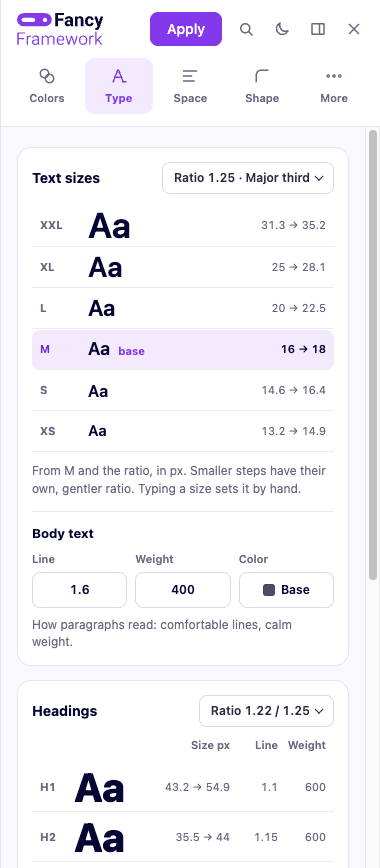
A base font size and a scale of sizes around it (from extra-small to extra-large), fluid between your smallest and largest screen — no breakpoints to set by hand. Body text also has its own line height and weight, and a text color.
How the scale is calculated
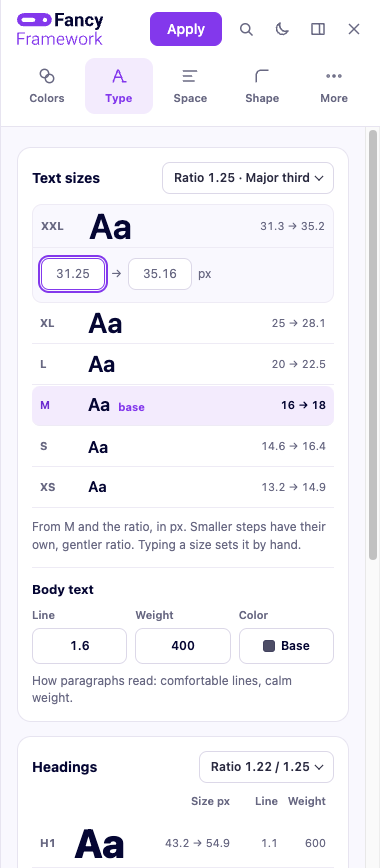
Text sizes grow outward from M, the base step, by the ratio you pick («Major third», «Perfect fifth»…) — one step up multiplies by it, one step down divides by it. The smaller steps (S, XS) use their own, gentler ratio so they never shrink as aggressively as the scale would otherwise make them.
Each step shows two numbers: its size at your smallest screen, then at your largest — the same fluid range as everything else in the framework (see More settings → Site). Click a step to open it; typing a value in either field sets that one step by hand, independent of the ratio, without touching the rest of the scale.
Each heading, independently
H1 through H6 each get their own size (part of the same fluid scale as body text, with its own ratio), their own line height, and their own weight — set per level, not calculated, because many fonts only ship a couple of real weights and the browser would otherwise invent a fake bold. Headings also share a single heading color.
The heading scale works the same way as text sizes, but grows outward from H6 instead of M — click any level to set its size by hand the same way.
Buttons
A button's text follows its own weight, independent of body text and headings — 500 by default, the kind of in-between weight that reads well on a filled button without looking as heavy as a heading. Its full screen, with padding and radius, is in More settings → Buttons.